Recurring classes are accessed through the main menu under booking. Here you can add or edit any recurring class
NOTE: you need to set up your class-pass types before creating any classes.
Add a new recurring class by tapping the "new recurring class" button at the bottom of the window, or through the downdots menu
Setup a recurrent class schedule
Create recurring classes from the Class Schedules view.
Before scheduling, choose or create a Class configuration. The Scheduling assistant will prompt you to select an existing configuration or set up a new one.
Get started
Navigate to Booking > Class Schedules, then either:
Click the Add menu in the top‑right corner
Tap an empty slot in the schedule
Tap the date header
On the first step of the Scheduling assistant, choose Recurrent class and tap Next.
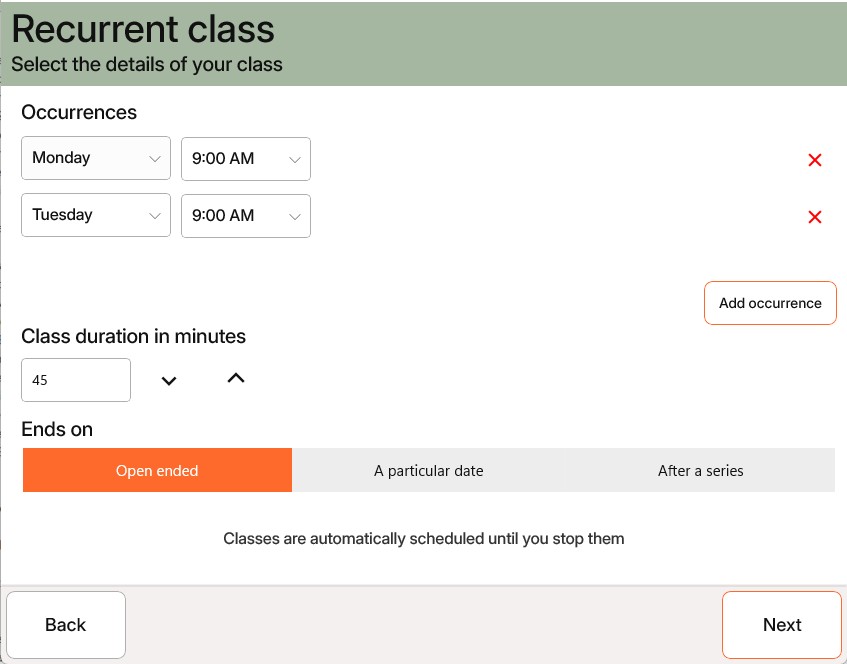
Define the occurrence pattern
Use the assistant to select one or more weekday/time combinations to define your class pattern. You can add multiple occurrences as long as they don’t overlap.
All occurrences share the same Class configuration, including public details like advertising text, instructor, and equipment. To keep your messaging and logistics consistent, avoid mixing:
- Reformer and Mat classes in the same schedule
- Days typically led by different instructors
- Times with distinct tones (e.g., motivational morning copy vs. relaxed evening sessions)
You can update the configuration for individual occurrences later, but new events will always use the configuration selected during setup.
Set an end condition
You can end a recurrent schedule on a specific date or after a set number of classes. This is especially useful for organising courses — see Class courses for details.
If no end is set, new classes will continue to be created automatically as your schedule timeline rolls forward week by week. Learn more about your active schedule timeline.
Once your occurrence pattern is defined, follow the same steps as outlined in Setup single class to complete the configuration.
Manage recurrent classes
After creation, your recurrent class appears under Booking > Recurrent classes.
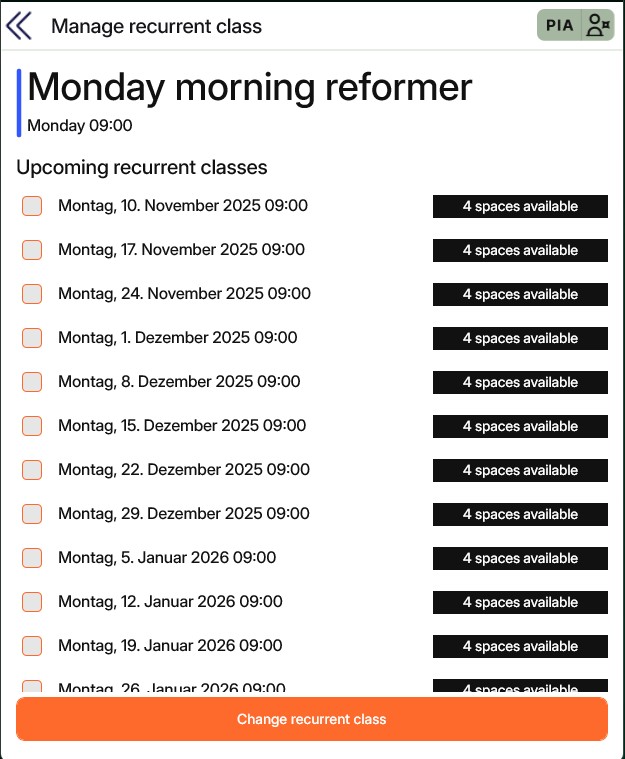
From this dialog, you can:
- Quickly navigate to the individual classes generated from the schedule
- Cancel multiple upcoming events at once
- Tap Change recurrent class to update any setup details, schedule an end date, or delete the entire recurrent class
Once your recurrent schedule has generated multiple classes, you can edit, cancel, or modify each individual event just like any other class. Learn more in Manage a scheduled class.
Related articles
Dig deeper
Further articles in the category Recurrent classes
All Help categories
Here all all the main help categories in the Appilates user manual.