Appilates User Manual for Studios
Product display order
Your products are displayed alphabetically unless you rearrange the order.
To change the order;
Step 1.
Make sure you're on the passes and products page.
Step 2.
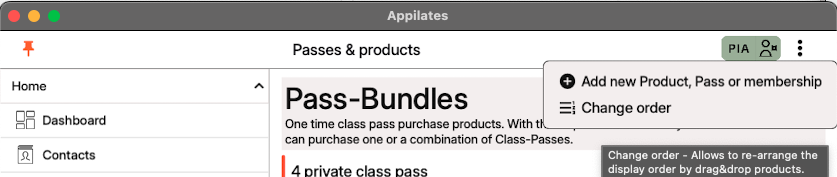
Tap the downdots menu.
Step 3.
Tap Change order
 .
.
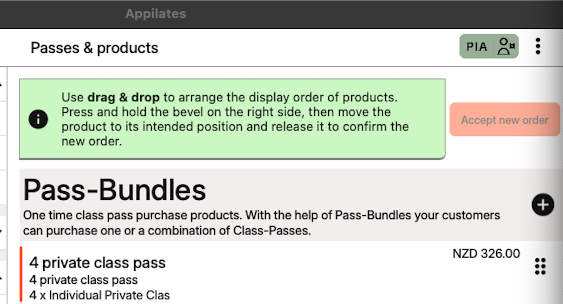
You will then see two rows of dots beside each pass-bundle and membership, and the "Accept new order" button will appear.
 .
.
Step 4.
Tap and hold the two rows of dots beside the bundle or membership you want to move, 
and drag it to where you want it to go,
then release your finger or mouse button.
Step 5.
When you have the order you want, tap the orange "Accept new order" button 
Related articles
All Help categories
Here all all the main help categories in the Appilates user manual.