Manage a scheduled class
Whether it's a single event, a recurrent class, or a course series, you can manage, edit, or cancel any class by opening it directly from the Class Schedules view in Appilates.
Available options depend on the current state of the class — whether it’s upcoming, past, or cancelled. Actions like Cancel, Participants, and Change time will appear accordingly.
The layout of these options is shown below:
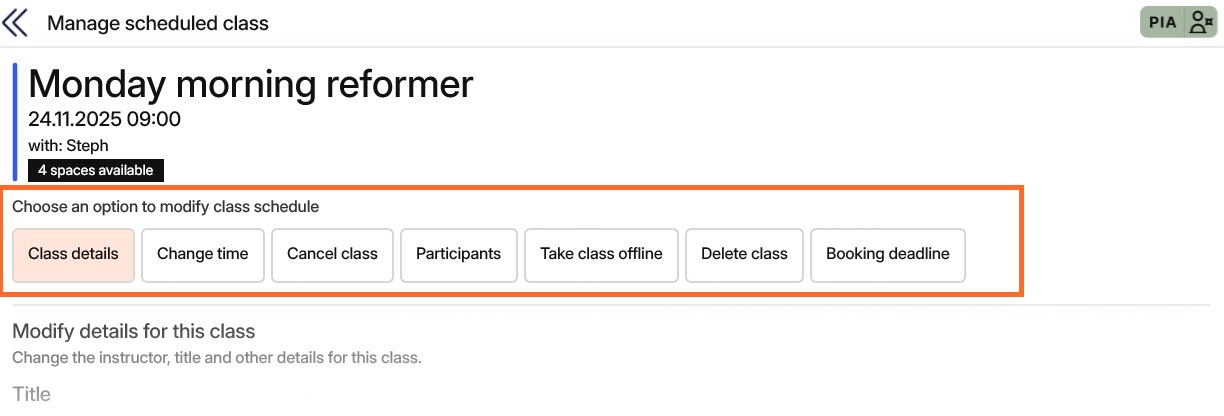
On mobile devices: Options are provided via a picker at the top of the page.
Options to change a class
Note: Not all options may be visible or available, depending on the current state of the class.
| Option | Description |
|---|---|
| Class details | Change minor details such as the scheduled instructor, title, or internal remarks. You can also update the Class configuration for this specific event, or for the entire series if the class was created from a recurrent schedule. |
| Change time | Set a new date or time and optionally notify all booked participants about the change. |
| Cancel class | Cancel future classes and notify participants if any are booked. |
| Participants | Book or cancel participants, or manage the waitlist for overbooked classes. |
| Take class offline | Hide the class from public view without cancelling it. |
| Delete class | Permanently remove the class from your schedule timeline. |
| Booking deadline | Adjust the booking and cancellation cutoff times for this event. |
Cancellation deadline & 'No-Show'
Once a participant holds a reservation and the cancellation deadline has passed, Appilates will automatically mark the class-pass credit as claimed. The participant may still cancel their reservation before the class begins, but the pass credit will be forfeited.
If a staff instructor cancels a participant’s reservation after the cancellation cut-off, Appilates will prompt whether to refund the pass or not.
If you cancel an entire class with booked participants, Appilates will automatically refund all affected passes. This is because the cancellation is considered a studio decision, not the participant’s fault.
Marking a 'No-Show'
Marking a participant as a No-Show is typically done via the Today View when a client fails to attend their scheduled class.
If you know in advance that a participant won’t be attending, we recommend cancelling the reservation instead. This frees up the spot for others to book and helps keep your schedule accurate and efficient.
Related articles
All Help categories
Here all all the main help categories in the Appilates user manual.